How to Create a Digital Signature in Word to Secure Documents
Learn how to add a digital signature in Word to secure your documents. We cover Word's native tools and when to use a dedicated platform for full compliance.

Tired of nonsense pricing of DocuSign?
Start taking digital signatures with BoloSign and save money.
Using a digital signature in Word is about much more than just pasting a picture of your handwriting. It’s about embedding a secure, cryptographic seal directly into the document. This seal acts as a digital notary, verifying your identity and proving the file hasn’t been touched since you signed it. For important agreements, from real estate contracts to vendor onboarding, that layer of security is non-negotiable.
Why a Digital Signature in Word Matters for Your Business
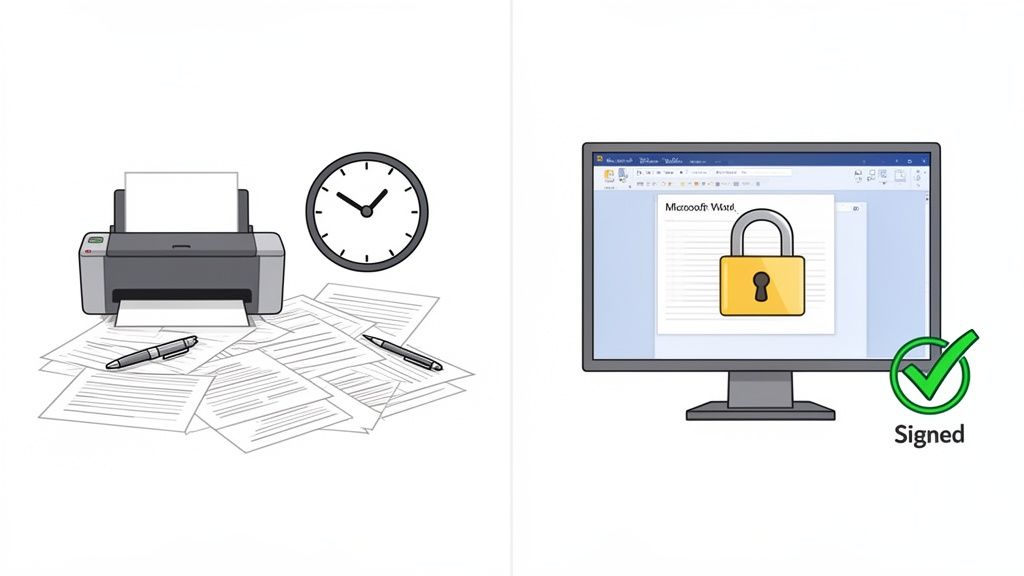
Let’s be honest, the old way of doing things is a massive bottleneck. Printing a document, signing it with a pen, scanning it, and emailing it back is slow and clunky. This administrative drag can stall critical deals and waste valuable time. A true digital signature in Word cuts through all that frustration by letting you create a secure, verifiable mark of approval right inside the document you’re already working on.
Beyond Convenience to Compliance and Trust
For anyone working in a high-stakes industry, the difference between a simple electronic signature and a secure digital one is night and day. When document integrity and non-repudiation are essential, you need a signature that can hold up under scrutiny.
Think about these real-world scenarios:
- Real Estate: Agents in the US, Canada, or Australia need legally sound signatures on purchase agreements and leases to close deals faster.
- Healthcare: Providers have to secure HIPAA-compliant electronic signatures on patient forms and consent documents, ensuring patient data is protected.
- Logistics: Companies in busy hubs like the UAE rely on signed contracts to lock in shipping rates and vendor agreements without delay.
- Staffing: Onboarding new employees requires a fast, secure way to handle offer letters and policy acknowledgments.
It's no surprise that the global shift to 'digital-first' has pushed 66% of large companies and 49% of smaller ones to prioritize electronic signatures over paper whenever they can. Why? Because tracking down physical signatures can easily add a full day to a workflow—a pain point everyone from university admissions processing enrollment forms to property developers finalizing leases feels deeply.
If you want to dig deeper into how e-signatures can drive faster business closings, it's worth seeing the impact they have beyond just Word's built-in features.
Using Word's Built-In Signature Line Feature
Microsoft Word gives you a surprisingly simple way to add a placeholder for a signature, which is a great first step for anyone new to digital signing. This built-in tool, called the "Signature Line," creates a designated spot for someone to sign, making your contracts and agreements look far more professional than just a typed name.
Getting started is easy. Just head to the Insert tab on Word’s ribbon. From there, find the Text group and click on Signature Line. This pops open a setup box where you’ll fill in the signer’s details.
Configuring the Signature Details
In the Signature Setup box, you get to enter key information that guides the person signing. It’s pretty intuitive. For example, imagine a procurement manager at a logistics firm sending a vendor agreement. They would fill it out like this:
- Suggested signer: The name of the vendor's representative (e.g., "Jane Doe").
- Suggested signer's title: Their official role (e.g., "Operations Director").
- Suggested signer's e-mail address: Their contact email, which helps with identification.
- Instructions to the signer: A short, clear note like "Please sign to confirm acceptance of terms."
Once you've configured these details, Word drops a signature line right into your document, clearly marking where the signature needs to go. When the recipient opens the document, they can just double-click this line to add their signature—assuming they have a Digital ID already set up on their computer.
This feature is perfect for simple, internal approvals where trust is high. The catch? It relies on the signer having the right software and a pre-existing digital certificate, which can be a real hurdle for external parties like clients or vendors who aren't tech-savvy.
While this native feature lays the groundwork for creating a digital signature in Word, it definitely has its limits, especially as your signing volume and security needs grow. For a more detailed look at the process and its alternatives, check out our complete guide on how to do an e-signature on Word. Getting a handle on these basic tools is the best way to figure out when you need to upgrade to a more robust, automated solution.
How to Secure Your Signature with a Digital ID
A signature line in Word is just an empty placeholder until it’s backed by a Digital ID. Think of a Digital ID as a secure certificate that proves you are who you say you are. This is what turns a simple signature image into a verifiable, tamper-proof seal, giving your digital signature in Word real authority.
Without this certificate, anyone could copy and paste a signature image. With it, the document gets cryptographically locked the moment you sign. Any changes made after the fact will immediately invalidate the signature, providing the level of trust needed for important business agreements.
This quick flowchart breaks down the basic process inside Word.
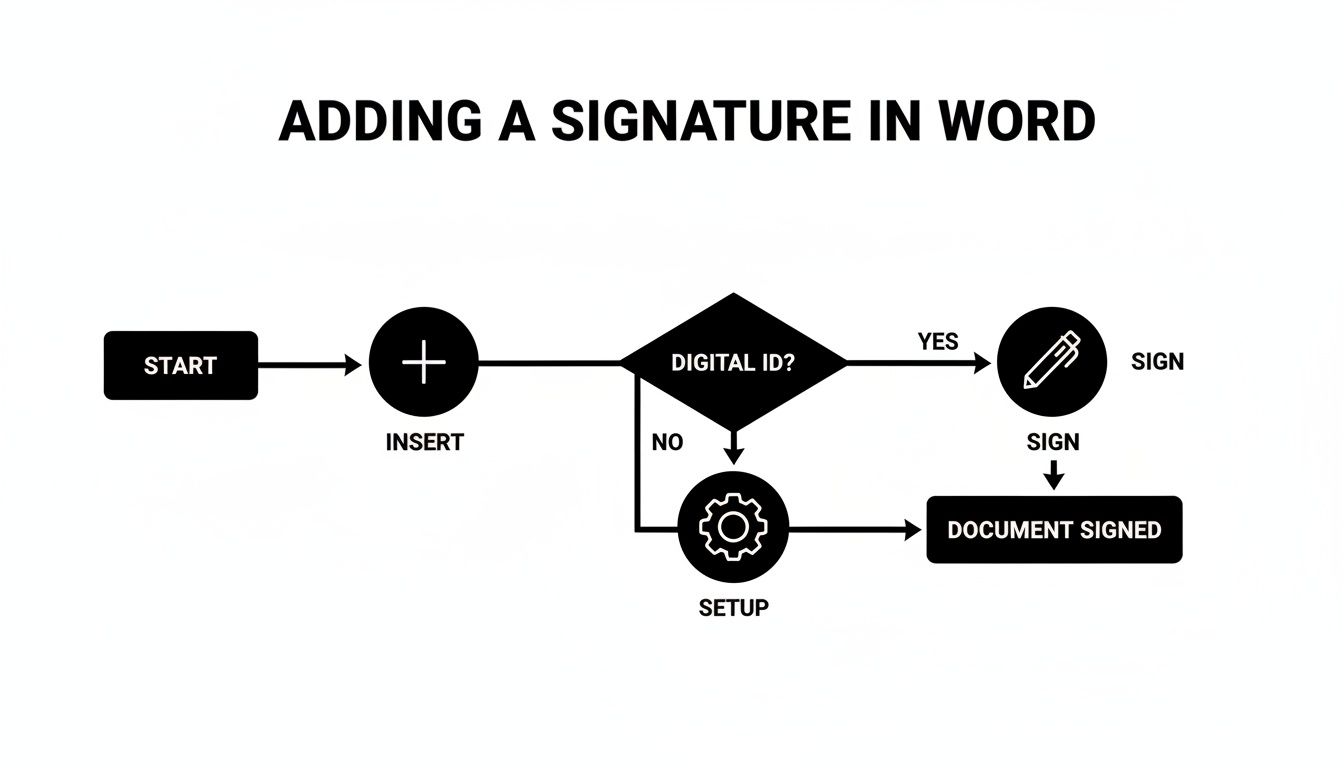
As you can see, the process boils down to three core actions: Insert, Setup, and Sign. It’s all quite straightforward once you have your Digital ID ready to go.
Choosing Your Digital ID Source
You have two main paths for getting a Digital ID. The first is to create a self-signed certificate directly within Microsoft Office. This option is free and takes just a minute, making it perfect for internal documents where everyone already trusts each other—think of a manager approving a team member’s expense report.
However, for external contracts or legally binding documents, a self-signed certificate just won't cut it. You need a Digital ID from a trusted third-party Certificate Authority (CA). These organizations rigorously verify your identity before issuing a certificate, which gives your signature serious legal weight under regulations like the ESIGN Act in the US and eIDAS in Europe.
For example, a real estate agent finalizing a property sale or a healthcare provider needing compliant forms must use a CA-issued certificate. The security and legal standing are non-negotiable for these high-stakes documents.
When deciding which path to take, it really comes down to trust and legal validity. A self-signed certificate is based on your own claim of identity, while a CA-issued one is verified by a neutral, trusted third party.
Choosing Your Digital ID Source in Word
| Feature | Self-Signed Certificate (Word) | Certificate Authority (CA) |
|---|---|---|
| Verification | None; created by the user | Rigorous identity verification |
| Trust Level | Low; only trusted within a small, known group | High; universally trusted |
| Legal Standing | Weak; may not be legally binding | Strong; legally admissible and compliant |
| Cost | Free | Paid (annual or multi-year subscription) |
| Best For | Internal, informal document approvals | External contracts, legal documents |
In short, a self-signed certificate is like showing your own handmade ID card, while a CA-issued certificate is like presenting a government-issued passport.
For industries with strict compliance rules, this distinction is absolutely critical. A healthcare clinic, for instance, must ensure all patient forms meet specific security standards. You can learn more about what it takes to get a HIPAA-compliant electronic signature to understand why a verified Digital ID is so important in regulated fields.
Ultimately, while Word’s self-signed option is convenient for casual use, any professional or legal workflow demands the robust verification that only a trusted CA can provide.
When Your Business Outgrows Word's Signing Features
Word’s signature tools are a fantastic starting point. For the occasional, simple agreement, they get the job done. But what happens when "occasional" becomes "daily"? The moment you need multiple people to sign a single contract, track a document’s status in real-time, or keep a detailed audit trail for compliance, you’ve officially hit the ceiling of what Word can offer.
These are common growing pains. Think of a staffing agency onboarding dozens of new hires every month—trying to manage that volume securely in Word is a recipe for chaos. Or a professional services firm juggling multiple client contracts; they need a centralized dashboard, not a messy folder full of standalone Word files.
The Signals You Need a Better Solution
Recognizing you've outgrown Word is the first step. You'll likely start to notice a few key challenges that slow down your operations and open the door to unnecessary risk. These limitations often pop up when you need to:
- Manage Complex Workflows: Sending a document to three different people in a specific signing order is something Word simply wasn't built to handle.
- Maintain an Audit Trail: For legal and compliance reasons, you need a detailed log of who signed, when, and where. Word's features don't provide this crucial, legally defensible record.
- Ensure High-Level Compliance: Meeting strict regulations like HIPAA, GDPR, ESIGN, and eIDAS at scale demands more than a simple signature. It requires a system built from the ground up for security and traceability.
This is where dedicated digital signing solutions like BoloSign step in. Instead of wrestling with Word's limitations, you can use a platform designed to handle complexity with ease. BoloSign lets you create, send, and sign PDFs, templates, and forms instantly, turning a clunky, multi-step manual process into an automated, one-click workflow.
For businesses that frequently handle legal documents and contracts, such as property management, specialized applications often provide more integrated and robust signing workflows than Word's built-in features. For a deeper dive, you can explore the best property management apps to see how industry-specific tools tackle these challenges.
BoloSign also brings AI-powered automation and reusable templates into the mix, making it effortless to scale your operations. Even better, it does so affordably. With a fixed price for unlimited documents, templates, and team members, BoloSign is up to 90% more affordable than alternatives like DocuSign or PandaDoc.
If you’re ready to move past the limitations and embrace a more powerful signing process, why not see the difference for yourself? You can start a 7-day free trial to experience BoloSign firsthand.
Upgrading Your Workflow with AI and Automation
So, you’ve mastered the digital signature in Word. That’s a great first step, but it’s really just the beginning. The real game-changer is turning that manual signing process into a smart, automated workflow. This is where dedicated platforms come in, layering AI and automation on top of your contracts to help you work smarter, not harder.
The market reflects this evolution. Cloud-based digital signatures now dominate, driven by the need for accessible, integrated solutions that work seamlessly with everyday tools. For teams living in their CRM or managing remote operations, this kind of integration is absolutely essential for closing deals without delays.
Supercharge Your Contracts with AI
Modern digital signing solutions like BoloSign do a lot more than just collect a signature. They bring genuine contract intelligence into the mix. Imagine this: BoloSign's AI can actually review your Word documents before you send them out, automatically flagging risky clauses, suggesting better language, and checking for compliance issues.
This completely changes the pre-signature game, a critical stage we explore in our guide to AI contract lifecycle management. For instance, an education provider could use contract automation to generate and send hundreds of personalized enrollment agreements from a single master template, literally saving days of tedious work.
The real advantage is pairing this powerful technology with affordability. BoloSign’s fixed-price model for unlimited documents, templates, and team members makes it up to 90% more affordable than competitors like DocuSign or PandaDoc, offering a scalable solution without unpredictable costs.
This allows organizations to automate their workflows with confidence, knowing they have a secure, compliant, and cost-effective platform that can grow right alongside them. It's not just an upgrade; it's a strategic move that delivers both speed and significant savings.
Beyond Word: Embracing a Fully Automated Workflow
So, you've mastered creating a digital signature in Word. That’s a great first step. But as you've likely discovered, its limitations can start to feel like bottlenecks, especially as your needs grow.
The next logical leap isn’t just about signing a document; it's about automating the entire contract lifecycle. This is where you graduate from a handy tool to a genuine strategic asset.
With a dedicated digital signing solution, you can reclaim hours of administrative time and cut down on business risk. Features that once felt like a luxury—such as AI contract review, unlimited templates, and rock-solid audit trails—are now essential for staying competitive.
From Tedious Task to Strategic Advantage
It doesn't matter if you're in real estate, healthcare, or logistics; the right platform makes signing a seamless, almost invisible part of your daily workflow. Instead of spending your energy chasing signatures, you can get back to closing deals and taking care of your clients.
BoloSign offers a single, fixed price for unlimited documents, templates, and team members. This makes it up to 90% more affordable than alternatives like DocuSign or PandaDoc. It’s a smart investment in efficiency, compliance, and your bottom line.
Ready to see how an affordable, unlimited eSignature solution can truly change your operations? The best way to understand the impact is to see it for yourself.
Start a 7-day free trial and explore BoloSign today.
Common Questions About Digital Signatures in Word
When you start working with digital signatures in Word, a few questions pop up time and time again. Let’s clear up some of the most common ones.
Is a Digital Signature in Word Legally Binding?
Yes, but with a big asterisk. A digital signature in Word can be legally binding, provided it’s done correctly. It generally falls under laws like the ESIGN Act in the US and eIDAS in the EU. The key is using a certificate-based Digital ID from a trusted source, which is what verifies your identity and proves the document hasn’t been touched since you signed it.
However, for important business contracts where you can’t afford any ambiguity, relying on Word alone can be risky. This is where platforms like BoloSign add a critical layer of assurance. BoloSign gives you a complete audit trail and ensures compliance, making the signature’s legal standing much stronger than what Word can offer on its own.
What Is the Difference Between Electronic and Digital Signatures?
It's easy to get these two confused, but the difference is pretty important.
Think of an electronic signature as the umbrella term. It covers any kind of electronic mark showing you agree to something. That could be as simple as typing your name at the end of an email or pasting a scanned image of your handwritten signature.
A digital signature, on the other hand, is a specific, highly secure type of electronic signature. It uses powerful cryptographic technology—your Digital ID—to embed your identity directly into the document. This process makes it tamper-evident, offering far more security and authenticity for critical agreements in fields like professional services or healthcare.
Can I Sign a Word Document on a Mac or Mobile Device?
Here’s a common roadblock. While you can easily add a simple signature image to a Word doc on almost any device, applying a secure, certificate-based digital signature is usually limited to the Windows desktop version of Word. For teams working remotely or on the go, this is a major headache.
This limitation is exactly why cloud-based digital signing solutions like BoloSign are so popular. They are built to work on any device—phone, tablet, or computer. It gives everyone the freedom to sign PDFs online or other documents securely from wherever they are, without any friction.
Does the Other Person Need Word to Sign My Document?
If you send a Word document for a digital signature using its built-in feature, then yes, the other person will also need compatible software to apply their signature. This dependency often creates annoying delays, especially if you're dealing with clients who don't use Word.
When you use an eSignature platform instead, the whole process gets simpler. You can create, send, and manage your documents, forms, and templates right from the BoloSign dashboard. The recipient receives a secure link and can sign it right in their web browser. No special software needed. It’s a much smoother experience for everyone involved.
Instead of wrestling with software compatibility and legal what-ifs, BoloSign offers a streamlined, secure, and affordable way to handle your entire signing workflow.
Ready to see how an AI-powered platform with unlimited documents and users can transform your business operations? Start your 7-day free trial today.

Paresh Deshmukh
Co-Founder, BoloForms
19 Jan, 2026
Take a Look at Our Featured Articles
These articles will guide you on how to simplify office work, boost your efficiency, and concentrate on expanding your business.

Compare the best AI contract review tools for 2025. See features, benefits, and practical tips to implement them at scale. Explore BoloSign’s unified solution.
Paresh Deshmukh
Co-Founder, BoloSign

Learn if clickwrap agreements are legally binding, how they work, and key best practices for enforceability.
Paresh Deshmukh
Co-Founder, BoloSign
Ready to streamline your contract management with AI?
Contact Sales
AI assistant to draft, review, and eSign contracts on autopilot for fastest growing companies.
Email: support@boloforms.com


Sales Inquiry
Available On


AI assistant to draft, review, and eSign contracts on autopilot for fastest growing companies.
Email: support@boloforms.com
Company
Solutions
Resources
Legal & Security
Sales Inquiry
Available On